Honest Review of Narrative's AI Editing for Photographers in 2026
I've Been Editing With Narrative's AI Presets. Here's What I Think.
Back in August, when I wrote about why I switched back to Narrative from Aftershoot for culling, I mentioned that I liked the way Narrative's editing is set up and promised I'd give it its own post. If you're a photographer wondering whether AI editing can match your own style, if it’s accurate with the edits, or whether it's worth paying for on top of culling, I'm walking you through how Narrative's AI editing works, what setting it up was like for me, how it fits into my workflow, and what you'll pay for it.
How Narrative's AI Editing Works (and Why It's Really Just Pattern Recognition)
When some photographers hear "AI editing," a lot of them picture software that invents a brand new look or changes what's actually in your photo, and that's not what's happening here at all. Narrative's editing is simply pattern recognition. It looks at thousands of photos you've already edited in Lightroom, notices how you tend to handle things like white balance, exposure, and skin tones in different lighting situations, and then applies those same patterns to your new galleries. It isn't creating anything new. It's learning from your own work and repeating what you've already shown it you like.
Narrative calls this a “Personal AI Preset”. To train one, you connect the drive where your Lightroom catalogs live, and Narrative scans them, finds your most consistent edits, and uses those to learn your style. You'll need at least 1,500 consistently edited images for Narrative to learn from. After that, when you finish culling and ship your picks to Lightroom, your images land there already edited in your style, ready for your finishing touches.
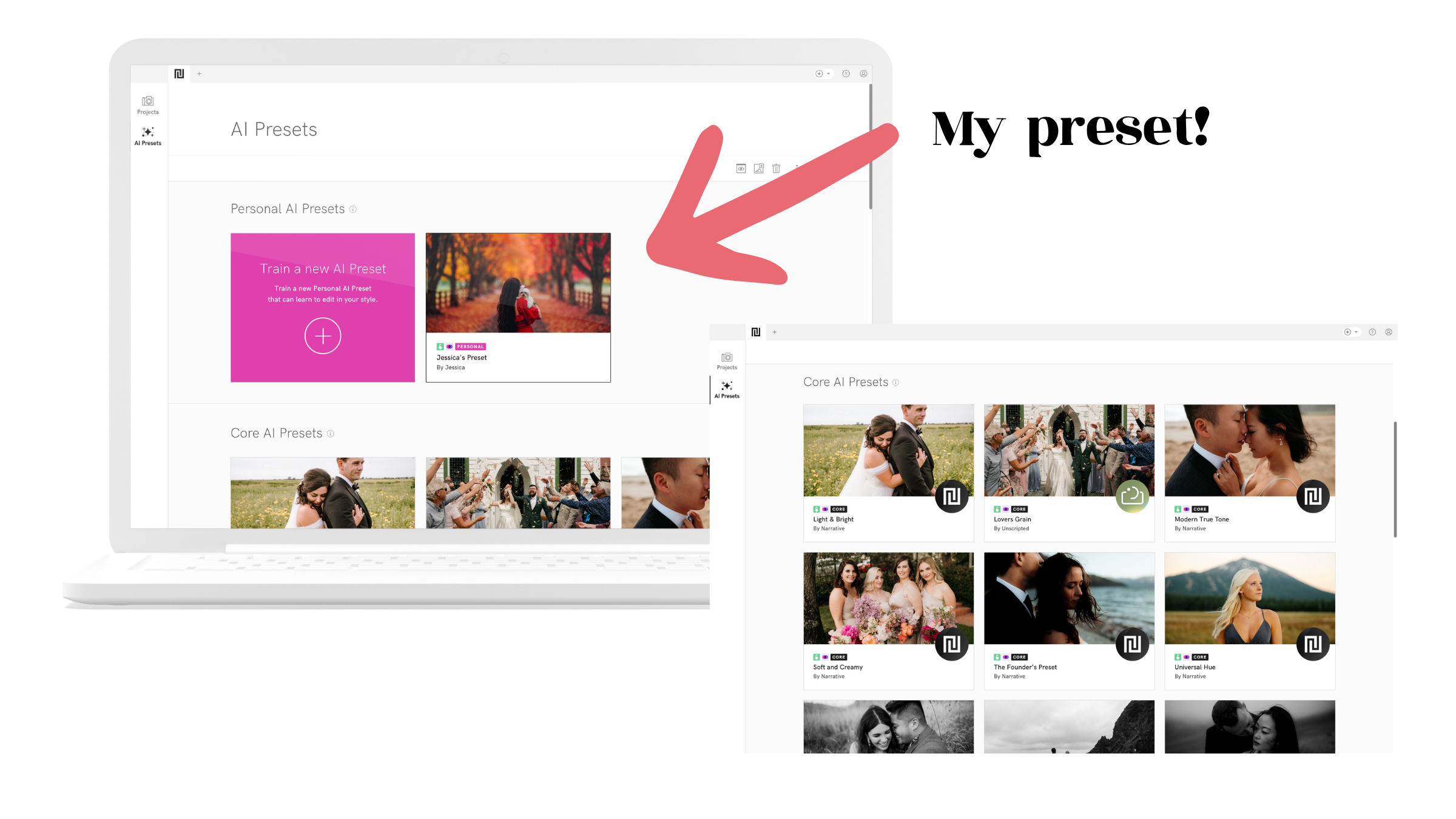
I'm on the Ultra plan, which lets you have up to five color presets and five black and white presets, but I only use one color preset, and that's really all I need. If you edit in a few very different styles, though, having more than one preset could be helpful.

It Keeps Learning Without Any Extra Work From You
This is one of my favorite parts. Once your preset is trained, Narrative keeps improving it in the background as you work, and the awesome thing is that it only learns from the photos you actually export. That means it isn't picking up on images still sitting in your catalog half-edited, or edits you tried and didn't end up liking. It learns from your finished work, which is exactly what it should be learning from. Here's how it works: when you ship images to your editing program of choice (for me, that’s Lightroom Classic) with your preset applied, make your usual tweaks, and then export the photos from Lightroom, Narrative picks up those corrections and uses them to retrain your preset automatically. Since I'm on Ultra, mine retrains after every 250 corrections, and on the Premium plan, it happens after every 1,000. Just keep in mind that this only works if you shipped those images with your preset applied in the first place.
What I love about this is that it happens while I'm already doing the editing I'd be doing anyway, so my preset keeps getting closer to how I edit now without me having to remember to update it myself.
MY First Impressions
Setting up my preset was very, very simple. All I had to do was select my Lightroom catalog. I didn't have to go through and pick out individual folders. That alone made the setup so much faster than I expected. Once you start training, it runs in the background while you keep working, and for me it took somewhere around four to six hours. How long yours takes will depend on your computer. You do need an internet connection for that first round of training, but once your preset is ready, you can apply it to your galleries with no Wi-Fi at all.
As for the edits themselves, they're pretty freaking good. It handles skin tones well, which is the part I care about most. I still adjust all the regular settings, like brightness and contrast, and I usually make a few refinements to colors, especially greens and yellows, which I was already tweaking in my own editing anyway. And sometimes, if the preset comes out a little too intense on a gallery but I like the base of it, I'll save that edit as its own Lightroom preset and reapply it at around 50% strength using the Amount slider.
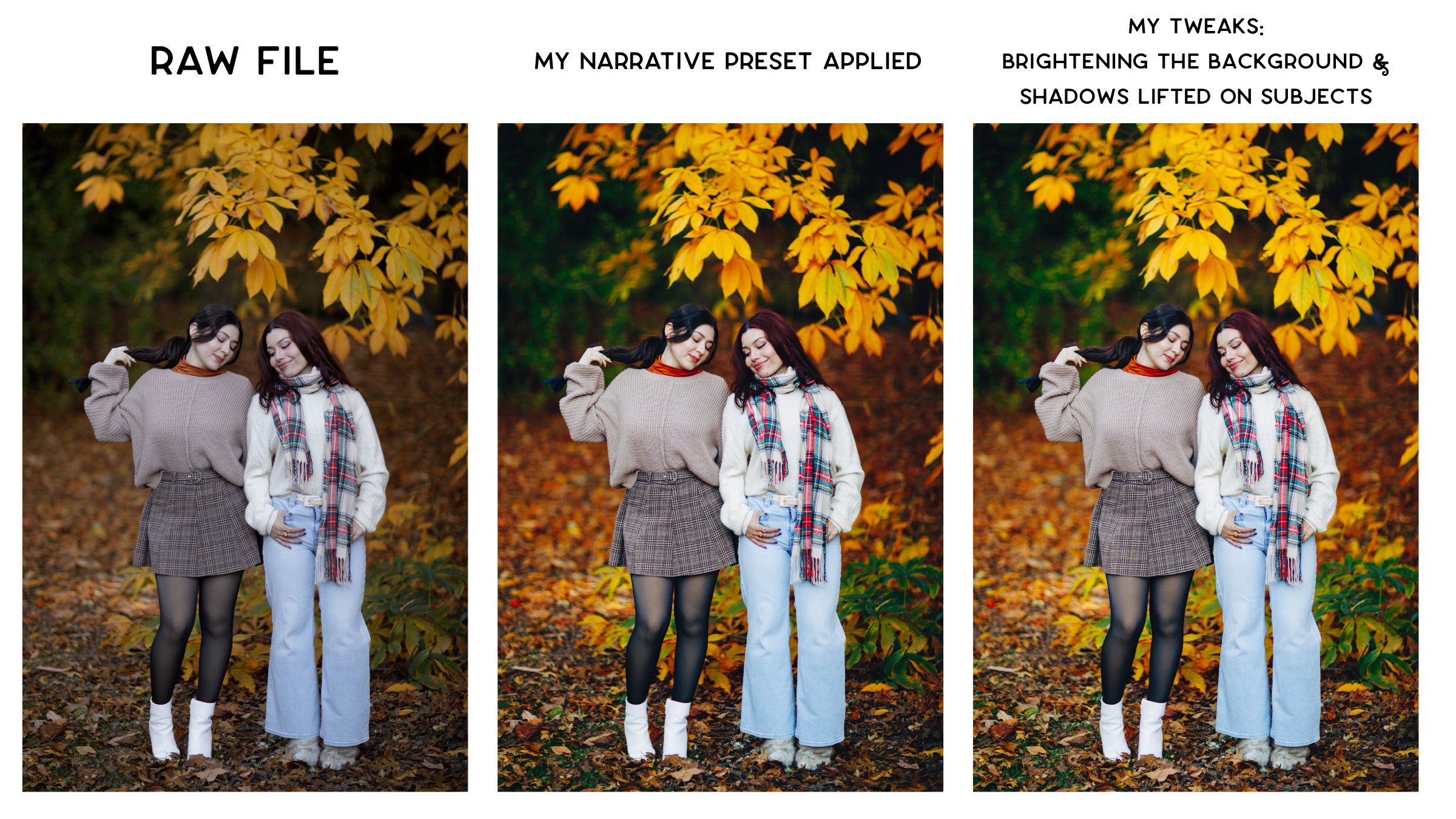
So no, it's not a one-and-done edit, and the software isn't meant to be. You should still be making changes and putting your own finishing touches on every gallery. What it does is give me a really strong starting point that already looks like me, so I spend my editing time on the details that matter instead of starting every gallery from scratch.
My Editing Workflow With Narrative
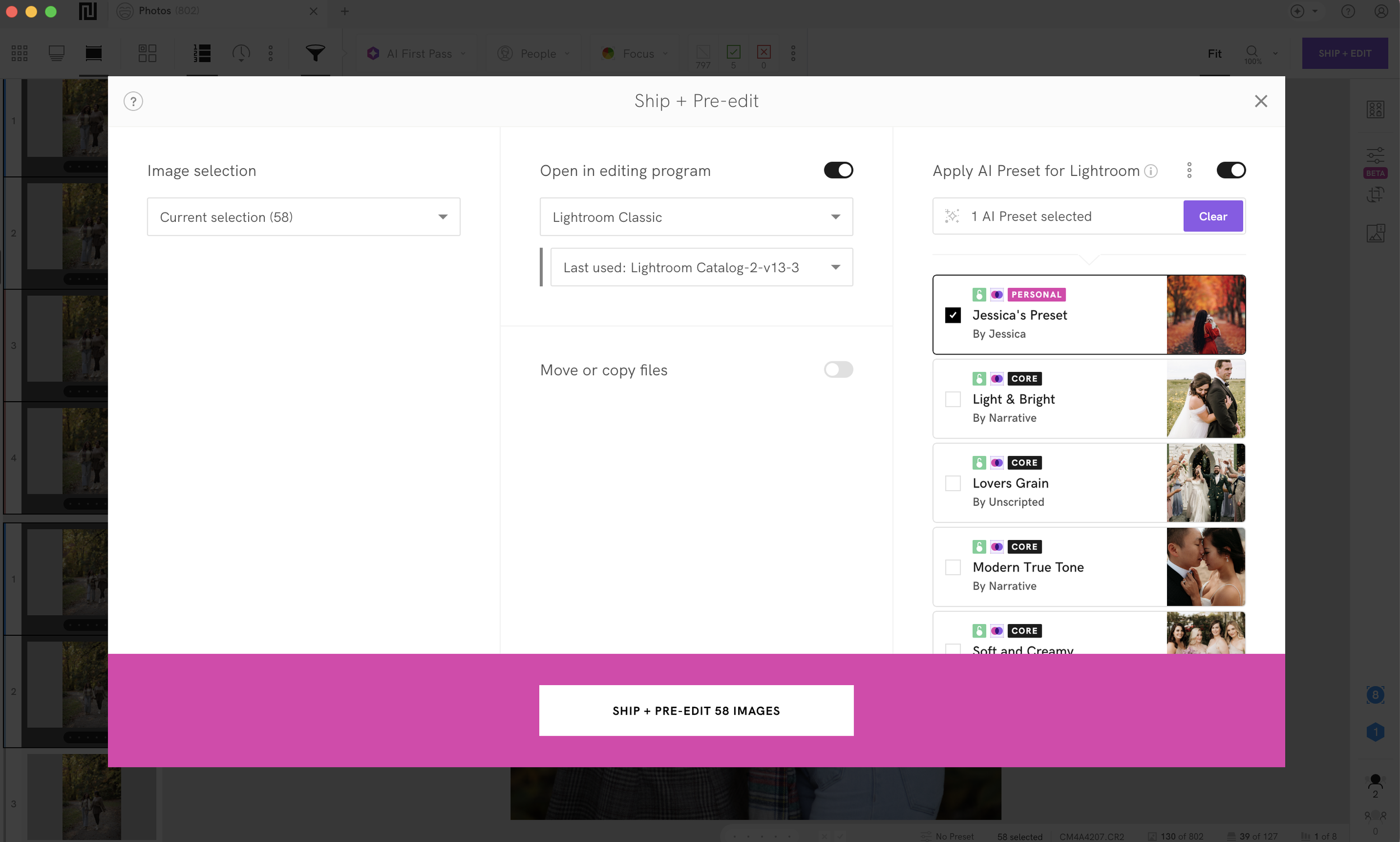
My workflow from start to finish is pretty simple. I import my session into Narrative and cull in Scenes View (more on my culling workflow here), tagging the images I want to keep using the "T" keyboard shortcut. Before I send anything over, I preview my preset right inside Narrative, and from there, I ship my selects to Lightroom with my preset applied and make my edits. The preset Narrative creates is simply a base, and I still spend time making adjustments to every gallery. Since I'm exporting from Lightroom anyway, every tweak I make gets fed back into my preset, so the whole thing gets a little more accurate each time without me adding a single step.
What About Aftershoot?
I used a personal AI profile with Aftershoot's editing too, and the results were very similar, which makes sense when both programs are learning from your own Lightroom edits. Since the edits come from your own style either way, the real differences for me came down to setup and upkeep. With Aftershoot, I had to select the individual folders I wanted it to learn from instead of just pointing it to my whole catalog, and at the time, keeping my profile up to date meant manually uploading new catalogs and folders and waiting for everything to process. Aftershoot has since added profiles that learn from your adjustments, which is great to see, but Narrative's simpler setup, plus the fact that it's my culling program too, is what makes it the better fit for my workflow. If you want a side-by-side look at how the two compare for culling, I break it all down in this blog post.
How Much Does Narrative's AI Editing Cost?
Narrative's editing is included in its plans, so you're not paying for culling and editing separately. Here's how it breaks down:
Lite: $10 a month billed annually, or $15 monthly. This plan is culling only, so it doesn't include AI editing.
Standard: $20 a month billed annually, or $29 monthly. Includes unlimited editing with Narrative's Core presets and Marketplace presets, but not a personal preset trained on your own edits.
Premium: $40 a month billed annually, or $59 monthly. Adds one color and one black and white personal preset trained on your edits, plus AI image straightening, and covers up to two users. Your preset retrains after every 1,000 corrections.
Ultra: $60 a month billed annually, or $79 monthly. Adds up to five color and five black and white personal presets, dedicated onboarding, and early access to new features, and covers up to four users. Your preset retrains after every 250 corrections.
If you want the AI to edit in your own style, Premium is where that starts. I'm on Ultra, which is why my preset retrains every 250 corrections instead of every 1,000.
Who Narrative's AI Editing Is Best For
Narrative's AI editing is a great fit if you already have a consistent editing style in Lightroom, you have at least 1,500 edited images for it to learn from, and you want to keep doing your finishing touches in Lightroom rather than moving your whole editing process into a new program. It's also a natural fit if you're already using Narrative for culling, since everything happens in one step when you ship. If you're hoping for software that edits your gallery start to finish with no changes needed, that's not what this is, and in my opinion, that's not what any AI editing tool should be.
Frequently Asked Questions
How many edited images do I need to train a personal AI preset? You'll need at least 1,500 consistently edited images in your Lightroom catalogs. The more consistent your past edits are, the better your preset will be.
Does Narrative's AI editing replace Lightroom? No. Narrative applies your preset as your images ship into Lightroom, and you still finish your edits there.
Do I need Wi-Fi to use Narrative's AI editing? You need an internet connection to train your personal preset, but once it's trained, you can apply it to your galleries offline.
Can I train a black and white AI preset? Yes, on the Premium and Ultra plans. Standard includes Narrative's own black and white Core presets.
Will AI editing make all my galleries look the same as everyone else's? Not with a personal preset. Since it learns from your own Lightroom edits, it's repeating your style, not a generic look.
Is AI editing worth it if I already use Lightroom presets? A regular preset applies the same settings to every photo, while a personal AI preset adjusts each image based on how you've edited similar photos before, so it's a much stronger starting point, especially for galleries with changing light.
Ready to Try Narrative's AI Editing?
If you've been curious about AI editing but didn't want to give up your own style, Narrative is the one I'd recommend. It learns from your edits, keeps getting better as you work, and still leaves the final call to you. Sign up using the link below to get 14 days free, no credit card required, and if you end up loving it as much as I do, use code jessicawhitaker for 10% off.